

How to Set Up Omnichannel Messaging in 7 Steps
Short answer: To set up omnichannel messaging, list the messages you send, choose a channel order for each, get accounts and consent in place, register your templates, connect your system or panel, test the fallback with real numbers, then launch and review delivery reports. Start the approvals first, because those are the steps you do not control.
The steps below are the same whether you send a few hundred messages a month or several lakh. New to the idea? Read what omnichannel messaging is first.
Last updated: 24 October 2026.

Suggested channel order by message type
A starting point, not a rule. Adjust it to your customers and test it.
| Message | First channel | Fallback | Why |
|---|---|---|---|
| Login or payment OTP | SMS | Voice call | SMS reaches any active number, and a call helps when it is not read. |
| Order or delivery update | SMS | WhatsApp carries links and buttons, SMS is the safety net. | |
| Payment or EMI reminder | SMS, then voice | Escalate only if the earlier channels were not delivered. | |
| Appointment reminder | SMS | A reply to reschedule is easy on WhatsApp. | |
| Opted-in offer | WhatsApp or RCS | SMS | Rich content first, a plain text version behind it. |
The 7 steps at a glance
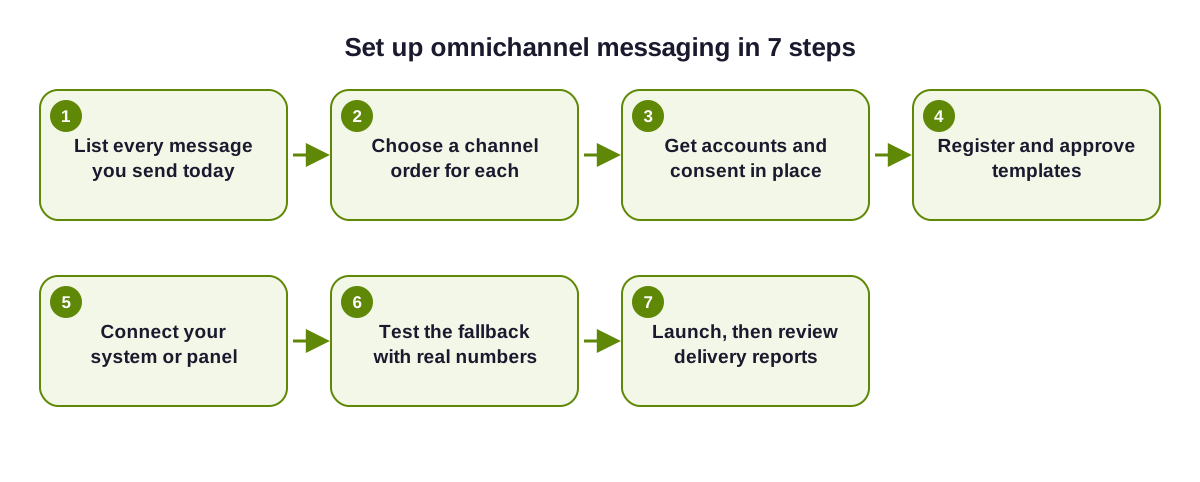
Step-by-step setup
List every message you send today
Open each tool you use and write down the messages: OTPs, order updates, reminders, offers. Note the trigger, the audience and the channel. Most teams find overlaps and gaps in this list, and it becomes the plan for everything below.Choose a channel order for each
Use the table above as a starting point. Put the cheapest or richest channel first only if the customer has opted in to it, and keep a plain SMS or voice call behind important messages. Set a wait time for each, for example a few minutes for an OTP and longer for a reminder.Get accounts and consent in place
Verify your WhatsApp Business account, complete DLT registration for SMS, and verify your brand for RCS if you use it. Record opt-in for each channel and honour opt-outs. Read DND compliance in India for promotional messages.Register and approve templates
Write each message once per channel. SMS templates go on DLT, and WhatsApp templates go to Meta for approval (see message templates). Use variables for names, amounts and dates, and keep the wording consistent across channels so the customer recognises the message.Connect your system or panel
For campaigns, upload a list in the panel and choose the channel order. For automated messages, connect your app, CRM or store to the REST API and receive delivery status on webhooks. See the API documentation and the integrations page.Test the fallback with real numbers
Send to numbers you control. Then force a failure, for example a number that is switched off, and confirm that the next channel fires after the wait time and that nothing is sent twice. Check that each channel shows the right sender name and wording.Launch on a small share, then review reports
Move a small share of real traffic first. After a day or a week, read the delivery reports: which channel delivered, how long it took and what failed. Adjust the order and wait times, then move the rest. See SMS delivery reports.
Checklist before you go live
- Opt-in is recorded for every channel you will use, and opt-outs are honoured.
- Every template is approved or registered, including the SMS fallback version.
- Wait times are set per message type, and you have tested a forced failure.
- Phone numbers are stored in international format.
- Someone owns replies, or an AI chatbot with human handoff covers them.
- You know where to read delivery reports and who reviews them.
Mistakes that slow a setup down
- Starting the approvals last. DLT and WhatsApp approvals are outside your control, so submit them at the start.
- No SMS version of the message. A fallback SMS needs its own registered template, or it cannot be sent.
- Setting the wait time too short. A message can arrive late. A very short wait leads to duplicates.
- Moving everything at once. Start with the messages that matter most and expand.
Where to go next
See omnichannel messaging use cases for ready-made channel orders, fallback routing for the rules, and messaging pricing in India for what it costs. Ready to start? Request a callback.
Omnichannel setup questions
How long does it take to set up omnichannel messaging?
It depends mostly on approvals. DLT registration and WhatsApp verification and templates are handled by third parties, and WhatsApp does not publish a guaranteed timeline. Start them first.
Do I need a developer to set it up?
Not for campaigns from the panel. You need one to connect your own app or CRM through the API and webhooks.
What should I send first?
Start with one message that matters, such as an order update or a payment reminder, then add others once the fallback works.
How do I know the fallback works?
Test with numbers you control and force a failure. Then confirm in the delivery report that the next channel fired and the customer received the message once.
Ready to unify your business communication?
Tell us what you want to send and on which channels, and our team will help you get set up on your own branded panel.